
Peter's Web Gallery (Thumbnailshow and Slideshow)
Copyright peter@danninger.eu Version: 14.12.2023 Deutsche Version
Why a own thumbnailshow and slideshow in the WWW ?
There are Dropbox, Google Drive, Microsoft OneDrive, Amazon Drive, and many other cloud providers.
Anybody, happy with these services and accepting the terms of use, OK, stop reading this.
Also all others, who are only interested in local slideshows on their computer,
But all others, wanting to store their images and slideshows in the cloud,
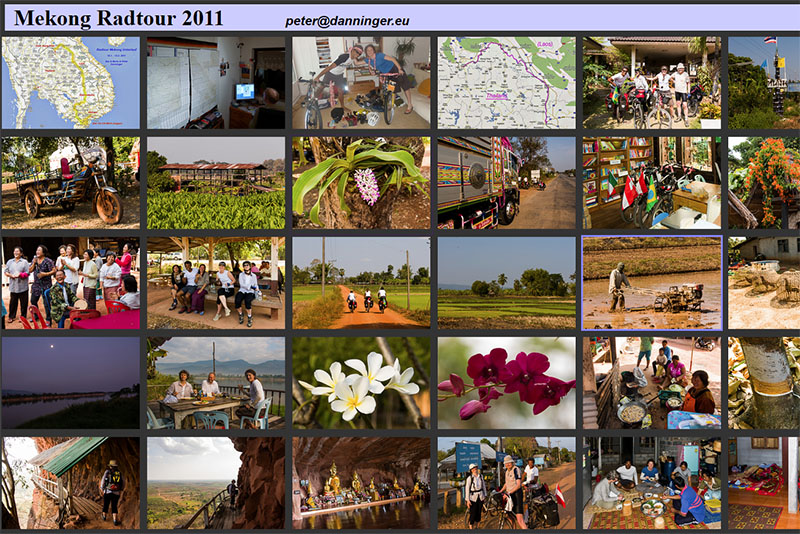
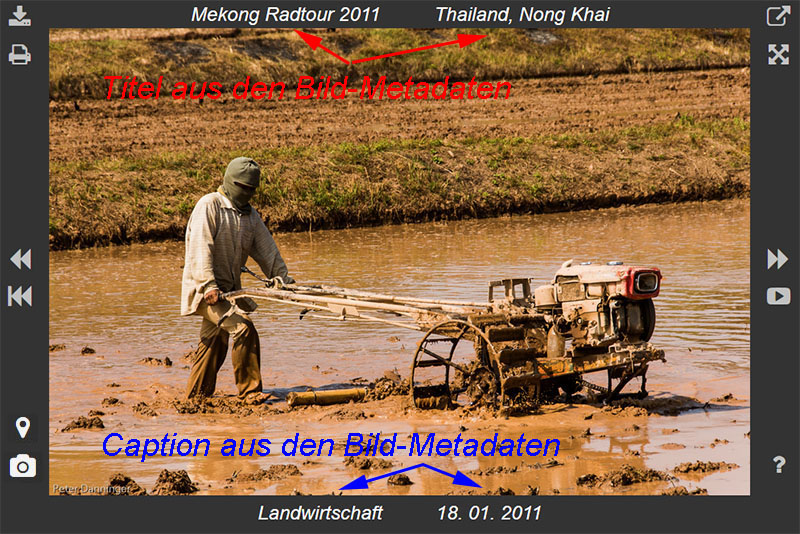
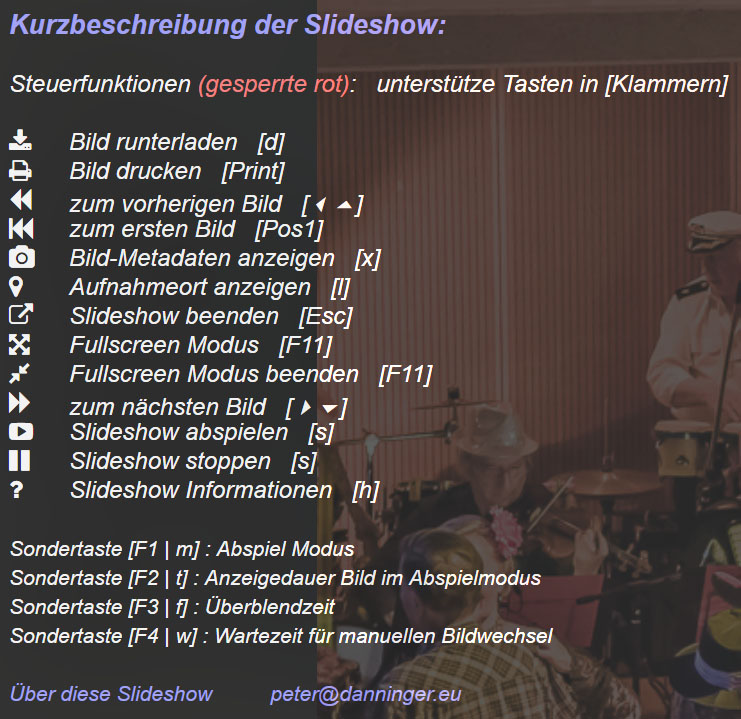
The screenshots above are from the following
web gallery.
Why I've decided to implement my own web gallery ?
I want to present my slideshows not only on a local computer, but also in the WWW!
I want to keep full control and full rights on my images!
Considering this I mistrust all free cloud providers.
I want to make thumbnailshows and slideshows with low effort, also if lots of images.
I want to generate thumbnailshows and slideshows automatically.
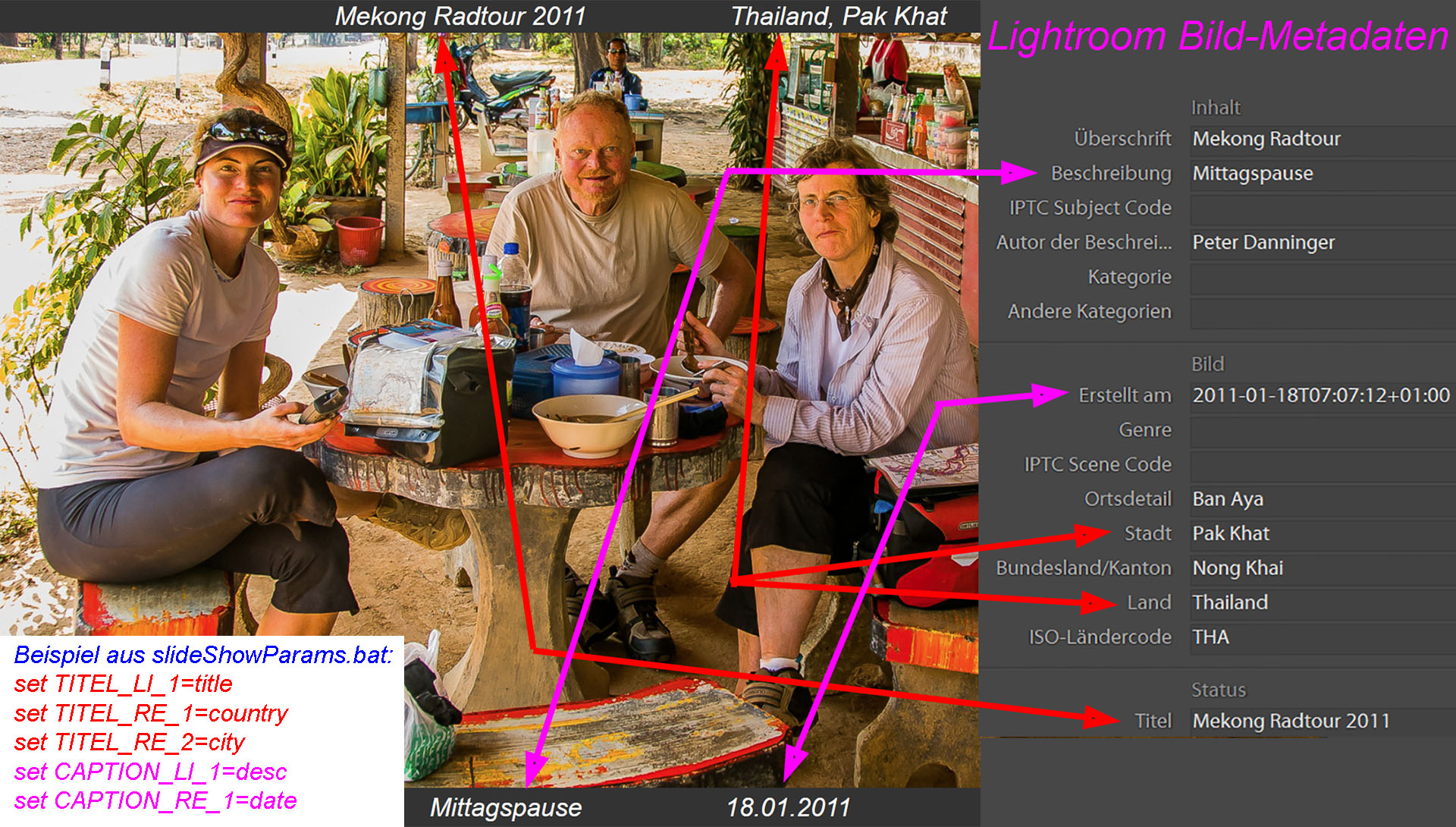
I want to extract the image-title (above) and the image-caption (below) from the image-metadata.
So I can avoid to edit the slideshow after generating.
Image-files have additional information in the file-header.
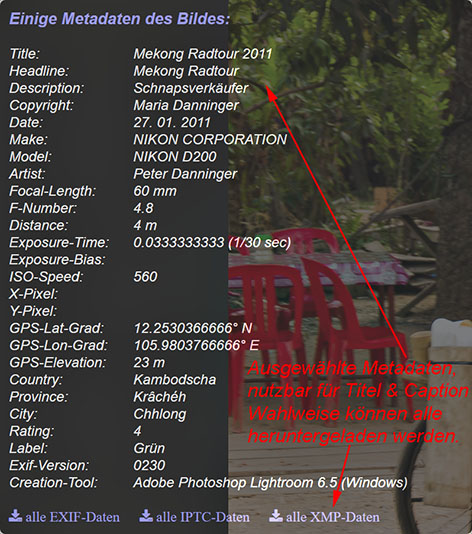
Which selection of these metadata can be used for the title and caption look below.
-
EXIF: Informations mostly supplied by the camera.
p.e. shooting date, aperture, distance, GPS-position, .....
-
IPTC: Informationen supplied by the image editing program.
p.e. copyright, titel, description, country, city, .....
-
XMP: new format (XML) for the IPTC-data with additional informations.
p.e. rating, label, keywords, .....
I organize and edit all my images with Adobe Lightroom,
Many informations has supplied the camera, p.e. the shooting time, the GPS-position,...
Lightroom can generate nice local slideshows from the selected images,
As title (above) or caption (below) selected metadata can be displayed, an
example
Lightroom also offers some web galleries, but these cannot be adopted to personal needs.
Also in the WWW I didn't find a web gallery, which fits my requirements.
- Basic ideas from the better simple slideshow
- Metadata fundamentals from exif-js (Jakob Seidelin)
- Icons from Font Awesome
- Wiping support from hammer.js
- All additional with HTML5, CSS3 und Vanilla Javascript ....
Arguments for the personal use
-
The images are located on a personal computer or web storage, p.e. a NAS.
Important for all who wish tho decide where their images are stored. -
The image-metadata can be used to display the image-title and image-caption.
There is no need to manually edit these in the slideshow file,very useful if lots of images.
But this is only possible if the images have been editedwith a image editing software like Lightroom.
Alternatively all the titles and captions could be edited in the slideshow file. -
The slideshow can be customized to the personal needs with a parameter-file. (slideShowParams.bat)
After customizing call "makeSlideShow.bat",to generate the thumbnailshow and the slideshow. - Thumbnailshow and slideshow will be generated automatically. (makeSlideShow.bat)
Requirements, Conventions
-
Edit pictures with Lightroom or similar program,
add title and description, and export pictures in the 3 directories. -
Images with 3 digit running number in the directory: \slides\
Recommendation: image size: 1024px (long edge) -
Evtl. larger images for downloading with same name in the directory: \oriPics\
Recommendation: image size: 1920px (long edge) - Thumbnails with same name in the directory: \thumbnails\
Recommendation: image height: 150px -
If you use the Google Static Maps API on own websites,
you need a personal KEY.
You will get this key from Google.Insert this key in slideShowParams.bat as: GOOGLEMAPSKEY - Up-to-date webbrowser for viewing the shows (HTML5, CSS3).
- Recommendation: Edit images before with Lightroom or similar program.
Implemented functionality
- Scroll forward and backward, also with wiping gestures on touchscreens.
- Scroll back to first image.
- Play the slideshow automatically, also with random follow, look at F1 below.
- Adjust image to suit the display size, alternatively also enlarging.
- Fullscreen mode (ideal for demonstrations).
- Download image, alternatively also in full size (if \oriPics\).
- Print image.
- Use the images metadata for title and caption.
- Display selected metadata of the image.
- Download all the metadata of the image (EXIF, IPTC, XMP).
- Show the location with Google Maps (if GPS location available).
- User interface is englisch, german, ...., easily adoptable. (\js\strings.js)
- Special key F1: Select play mode. (Standard: forward until the end)
- Special key F2: Display time. (Standard: 3 sec)
- Special key F3: Transition time. (Standard: 1 sec)
- Special key F4: Waiting time whe manually scrolling. (Standard: 1 sec)
Evaluated browsers and platforms (up-to-date versions)
- Windows 10:Firefox, Chrome, MS-IE, MS-Edge, Opera ... all OK
- Android 6:Firefox OK ... Chrome without data saving mode.
- Linux:Firefox OK
- Apple OS X:Safari, Chrome OK
- Apple iOS:not evaluated
Local test without webserver
If you try to test the slideshow local on your computer without a webserver,
Solution for Google Chrome: Command Parameter
Chrome_wo_CORS.bat ⇒⇒
Solution for Mozilla Firefox: Configuration parameter in about:config
security.fileuri.strict_origin_policy ⇒⇒ false
There is also a Firefox-Plugin
Short instructions for personal usage
Feel free to use this software private, that means, without any commercial interest.
Please check also the rights of the used libraries, mentioned above.
If you use this software, you accept, that there ist no service, no guarantee, no warranty,
- Download (small demo-show is included)
- Unzip to: ./slideShow/
-
We find following directories:
js: Javascript- and language files
evtl. rename own language file strings_xxx.js to strings.js
css: Style files
fonts: Font files
icons: p.e. spinner
help: Help files
evtl. rename own help file help_xxx.html to help.html
slides: Images (Demo) ... replace for own simple show ...
thumbnails: Thumbnails (Demo)
oriPics: evtl. larger images for download (Demo)
-
Further we find these files:
makeSlideShow.bat: Script to generate the thumbnailshow (index.html) and the slideshow (slideshow.html)
slideShowParams.bat: Parameters for customizing the shows (try and error)
Mit makeSlideShow.bat generierte Dateien:
index.html: Thumbnailshow
slideshow.html: Slideshow
With makeSlideShowSimple.bat generated simple show without metadata:
indexSimple.html: Thumbnailshow
slideshowSimple.html: Slideshow without metadata
-
The Static Google Maps API:
To dispay the location of an image,if the location info is available, the Static Google Maps API is used. To use this API on personal websites, you need an API key.
This key you get from Google.Insert this key in slideShowParams.bat as: GOOGLEMAPSKEY
The most important settings in 'slideShowParams.bat'
Sample values are defined:
- TITEL=HdS Faschingsgaudi 2016 Page title for thumbnailshow and slideshow
- BILDNAME=FaschingHdS2016_ Name of images without the running number
- BILDANZ=10 Number of images, max. 999
-
SCRIPTSDIR=./ local script und style root directory,
if just one slideshow, like the demo
-
SCRIPTSDIR=../slideShow/ common script und style root directory,
if more slideshows, example look below
- ORIPICDIR=oriPics evtl. directory for large images to download
- ENLARGE=true evtl. enlarge images on large displays
- SENOTTO=false evtl. thumbnail show for www.senotto.de
- GOOGLEMAPSKEY="##########" evtl. your personal GoogleMaps-Key
-
ADDTITLE=true Title with metadata above the image
The title will be composited as follows:
TITEL_LI_1, TITEL_LI_2 TITEL_RE_1, TITEL_RE_2
-
ADDCAPTION=true Caption with metadata below the image
The caption will be composited as follows:
CAPTION_LI_1, CAPTION_LI_2 CAPTION_RE_1, CAPTION_RE_2
-
Simple example, description see below:
TITEL_LI_1="title"
CAPTION_LI_1="desc"
CAPTION_RE_1="date"
The folder "slideShow/" can remain as it is.
On the same level we create a folder for each slideshow.
These get subfolders for the images: "slides/", "thumbnails/" and evtl. "oriPics/".
Additionally we need 2 files: "makeSlideShow.bat" and "slideShowParams.bat".
The file "slideShowParams.bat" has to be customized for the slideshow,
Description of supported metadata
Which metadata are in your images?
Following selection from the EXIF,
    • name:         image name                    (special case)
    • title:        image title                   (XMP | IPTC)
    • headline:     image headline                (XMP | IPTC)
    • desc:         image description, caption    (XMP | IPTC | EXIF)
    • byline:       Künstler                      (IPTC)
    • creator:      Ersteller                     (XMP)
    • rights:       copyright                     (XMP | IPTC | EXIF)
    • date:         shooting date                 (EXIF)
    • time:         shooting time                 (EXIF)
    • make:         camera manufacturer           (EXIF)
    • model:        camera model                  (EXIF)
    • artist:       photographer                  (EXIF)
    • userComment:  user comment                  (EXIF)
    • focalLen:     lens focal length             (EXIF)
    • fNumber:      lens aperture                 (EXIF)
    • subjDist:     subject distance              (EXIF)
    • expTime:      exposure time                 (EXIF)
    • expBias:      exposure bias                 (EXIF)
    • ISOSpeed:     ISO speed                     (EXIF)
    • pixelX:       image width                   (EXIF)
    • pixelY:       image height                  (EXIF)
    • latGrad:      GPS latitude                  (EXIF)
    • lonGrad:      GPS longitude                 (EXIF)
    • ele:          GPS elevation                 (EXIF)
    • country:      country                       (XMP | IPTC)
    • province:     province                      (XMP | IPTC)
    • city:         city                          (XMP | IPTC)
    • location:     location                      (XMP | IPTC)
    • rating:       rating, p.e.: "4"             (XMP)
    • label:        label, p.e.: "green"          (XMP)
    • exifVers:     EXIF version                  (EXIF)
    • creaTool:     software, p.e.: Lightroom     (XMP)
Example for the declaration of the metadata
Copyright peter@danninger.eu Version: 14.12.2023